RouteDoodle is a free app that turns your bike ride or run into art! You draw a picture by moving around in the real world, using your GPS to trace your path.
New here? Take the tutorial — it walks you through your first doodle, one step at a time, right on the map. Or pick one of the other tutorials.
Learn more with the tutorials: .
GPS Art
GPS Art is an art form where you draw a picture by recording your athletic activity in the real world — usually biking or running. It's also called Strava Art or drawing with your feet. Your picture has to be made of a single unbroken line.
There are three kinds:
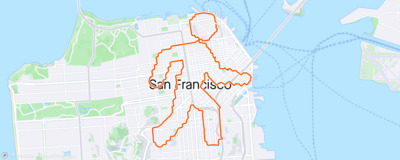
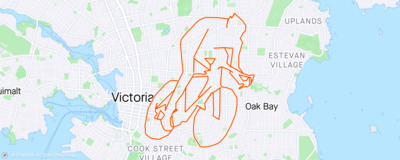
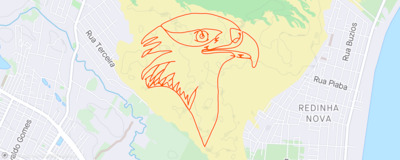
The most common kind is road-map GPS art, either without any pause-and-resume, or only sparing pause-and-resume.
Some places are much easier to draw in than others: a dense street grid gives you more lines to work with. The RouteDoodle wiki keeps a list of the best cities for GPS art.
Links
Start from a picture
The easiest way to make GPS art is to start from a picture. RouteDoodle traces it into a blue line, then finds roads that follow it.
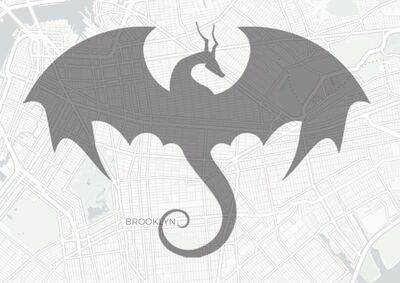 1 Find a picture
Search for one, or use your own.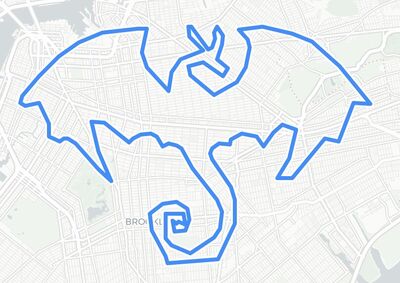 2 It's traced
The blue line is your Wireframe. You can move and reshape it.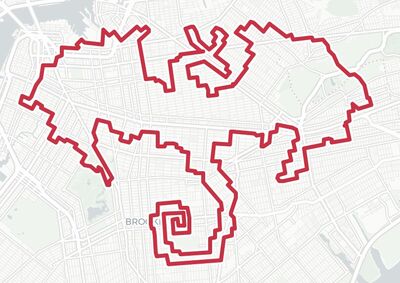
 Heart
Heart Circle
 Horse
Horse Whale
WhaleWhich pictures trace well
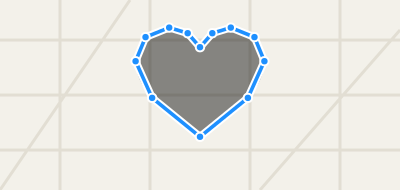 Traces well
One dark shape on a plain background traces into one clean line. Picture Search looks for these first; you can change that in its options.
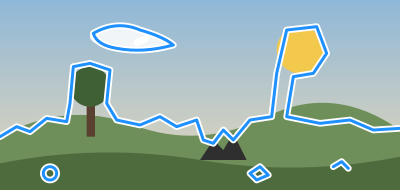 Traces badly
Backgrounds, shading and small details turn into jagged, stray lines that are hard to ride.
Tips
- Use your own picture
Drag one in from another window or from your desktop, or paste a picture's web address onto the map. - Make it big
Zoom out and stretch the picture so there's room for its details. The route's length updates as you resize, so stop at a distance you're happy to ride. - Outlines and inside lines
Most pictures (PNG, JPEG) are traced around their outline. A drawing saved as SVG keeps its own lines, inside ones too.
S or ' opens Picture Search. Q shows or hides the picture.
Wireframe Layer
The Wireframe map layer shows a blue line, made of control points and lines connecting them. It's like a connect-the-dots picture.
You can create a wireframe either by dragging a Picture from another window, or by drawing with the  Pencil tool. Try it: Drawing with the Pencil
You can edit the Wireframe by drawing with the Pencil tool, by moving/resizing/rotating the entire doodle, or by fine-tuning individual control points.
Watch as RouteDoodle automatically updates the Route! The quick feedback helps you find a good location for your picture.
Tips
- To move the doodle, drag the hand icon, or right-drag or Alt/Option+drag the interior of the wireframe/route.
- To resize the doodle, drag the resize handle on one of the four corners.
- To flip (mirror) the doodle horizontally or vertically, resize it below zero size.
- To rotate the doodle, drag the rotation handle at the top.
- To fine-tune an individual control point, drag either the solid blue control point on the Wireframe, or the corresponding red control point on the Route.
- To add a control point, drag one of the hollow markers between solid blue control points.
- To remove a control point, click on the point and press Backspace or click the
 Remove button. The line stays connected through the neighboring points.
 - To select multiple points, you can: shift-click to select a range of control points; control-click to multi-select individual points; or shift-drag on the map to draw a lasso around multiple points. On a touch screen, touch the map, hold still for a moment, then drag to draw the lasso.
- To drag multiple control points, select them, then drag the amber border.
- To reverse a range of control points, select them, then click the
 Reverse button.
 - A line can be a loop or not. To close a line into a loop, drag its start onto its end (or its end onto its start). To open a loop back up, click the control point where you want the gap and click the
 Split button.
 - While you work, a doodle can be in several separate lines, so that you can change one part without the rest. Dropping a picture with several parts makes one line per part. To cut a line in two, click a control point and click the Split button. With two neighboring points selected, the line is cut between them; with a stretch of points selected, that stretch of line is cut out and the two sides stay apart. Each line then gets a dotted box of its own: drag its move handle (the hand above its top edge) or Right-Drag inside it to move just that line, and use its corner and rotation handles to resize and rotate it, while the outer box still moves, resizes and rotates the whole doodle. When you're done, join the lines back into one (below): the doodle you ride is one line. Try it: Working in pieces
- With two or more control points selected, an amber box appears around them: drag its handles to move, resize or rotate just those points. With every point selected, the picture goes along with them.
- To join two lines, drag an end of one onto an end of the other, or draw with the Pencil tool from one end to the other. If the ends point the wrong way, one line is turned around so that they meet. Dropping or drawing one end of a line onto its other end closes it into a loop.
- To start a separate line, begin drawing well away from the lines you have, and finish away from their ends: a stroke that finishes near the end of a line attaches to it there, just as one that starts near a line does. While the Pencil tool is on, a dashed line from the pointer shows where a stroke would attach; when there is none, the stroke starts a line of its own. Right after you click a single point, though, the next stroke always attaches, so you can click from point to point however far apart they are. How far away is far enough is up to you, in Settings: from every stroke attaching, to only strokes that start right on a line attaching. Try it: Drawing with the Pencil
- While a doodle is in several lines, a faint dotted line shows each gap between them. It isn't something you can ride, so join the lines before you're done.
- Press W to toggle showing or hiding the Wireframe Layer.
- Press P to toggle the Pencil tool.
- Press ControlZ to Undo and ControlY to redo.
Route Layer
The Route map layer shows a red line that you'll follow when biking or running. This is also what you'll see in your GPS trace and the picture that your Strava followers would see. RouteDoodle creates the Route automatically from the Wireframe.
For each control point in the Wireframe, RouteDoodle creates a waypoint in the Route, and routes between them.
Once you're satisfied with your Route, export it onto your GPS navigation device and head out!
Routing modes
RouteDoodle supports three routing modes:
 Bike Mode Bike Mode | RouteDoodle will create routes suitable for cycling. |
|---|---|
 Run Mode Run Mode | RouteDoodle creates routes suitable for running. |
 Bird Mode Bird Mode | RouteDoodle assumes you will make your way to the next point somehow. |
Tips
- Dragging a Route waypoint is the same as dragging a Wireframe control point.
- To see directions (aka cuesheet), click the
 button (on a phone, the Directions tab along the bottom of the screen) or press D, or Export a CSV cuesheet file or TCX route file with directions.
 - Press E to toggle showing or hiding the Route Layer.
- To see just the Route, the way it will look on Strava, touch and hold the
 button (or hold Space). Let go to get back to editing.
 - To change the routing mode for new segments (from drawing with pencil or auto-tracing a picture), click the buttons.
- To change the routing mode for selected segments, use shift-drag (on a touch screen, touch and hold, then drag) to lasso select points, then click the buttons.
- To change the routing mode for all segments, press ControlA to select all, then click the buttons.
- The route stats in the corner of the map say how long the Route is, how much climbing there is, and more. Route Stats says what each one means.
- If RouteDoodle can't find a route between two points, that segment is automatically routed as if set to Bird Mode.
- RouteDoodle picks roads that match your picture, not the quickest way there. How RouteDoodle picks roads explains what it avoids, and how to see why it used a particular road.
Roads Layer
The Roads map layer shows a green line for every road that's traversable on bike or on foot. Zoom in, and arrows along a line mark a one-way street, pointing the way traffic goes. A one-way street that bikes may ride both ways gets no arrows.
One way to make GPS art is to stare at a map and looking for pictures that pop out (pareidolia). However, conventional maps made for driving and cycling aren't the best for this. Driving maps highlight freeways and hide small roads. Cycling maps highlight bike lanes only. These maps don't fully match the set of roads you can use for GPS art.
RouteDoodle's Roads Layer is made specially for GPS art. Unlike a driving map or cycling map, it shows every usable road, whether it's a cycleway or driveway, and it hides freeways. If you zoom out, the Roads Layer doesn't hide small roads, since they are just as important as the big roads. You can combine the Roads Layer with a conventional map base layer, or use the Blank layers for zero distractions. You can also print out the Roads Layer for sketching on paper.
How RouteDoodle picks roads
Most route apps look for the quickest or most comfortable way there. RouteDoodle looks for the way that best matches your picture. So it will send you through a parking lot, along a footpath, or up a short flight of stairs if that keeps the line on shape.
It never uses freeways or roads closed to the public. It will use any other road, but it prefers easier, safer ones and takes a harder one only when the picture needs it.
What RouteDoodle avoids when it can
- Private roads: used only when there's no other way.
- Roads with cars: the more dangerous the road, the more RouteDoodle avoids it. Bike paths without cars come first.
- Rough surfaces: gravel, dirt and anything that isn't smooth pavement.
- Footpaths and stairs (Bike Mode): you might have to get off and walk your bike.
- The wrong way down a one-way street (“salmoning”, Bike Mode): used only when needed. Walk your bike on the sidewalk there.
Why did my Route take this road?
To see why your Route used one road and not another, click or tap the road on the Roads Layer. A popup shows what the map knows about that road and how RouteDoodle rates it.
Road popups are off at first. To turn them on, open the menu, choose All settings, then, under Map, Show advanced settings, and check Road popups.
Exporting
Once you're done designing your route doodle, get ready to use it!
- Click the
 button (on a phone, Share along the bottom of the screen) or press ControlE to export a TCX or GPX file from RouteDoodle to your computer. The TCX format has the best support for turn-by-turn directions (cues).
 - Optional: Load the route file into your regular routing app to fine-tune the route.
- Load the route onto your bike computer, smart watch, or phone navigation app.
Sharing & Bookmarking
To share a route with someone, or to keep it for later, use a link. Press M to copy one. Tap Share link at the bottom of the Share window.The link carries your whole wireframe in the URL, so it reopens the doodle wherever it's pasted. The picture isn't included, and the route is rebuilt from current map data.
Saving
Saving to the cloud is not yet implemented. For now, copy a link and bookmark it, or export a GPX/TCX wireframe. You can open a bookmarked link in your browser, or drag or paste it into the RouteDoodle map. You can load a saved GPX/TCX/FIT file by dragging it into the RouteDoodle map.
How to load onto your navigation app
Safety
You are responsible for your own safety. Use your judgment, and don't go anywhere you shouldn't, even if the route does: a road that's too busy for your experience, or anywhere that's closed to the public. If you're new to riding in traffic, move the route onto bike paths and quiet streets before you go.
Check the route before you go
RouteDoodle puts how the route looks first, so it will use paths that weren't designed for bikes. Adjust the route by hand until it's safe and enjoyable as well as beautiful. Look over anything doubtful in the satellite map style, or go and see it in person, to decide whether the route is safe to follow.
Watch the road, not your screen
Pay more attention to the road than to your navigation device. To check your progress on a screen, get off the road first. Better still, use a phone app or GPS device that reads turn-by-turn directions out loud, with bone-conduction headphones so you can still hear traffic.
When the route goes against traffic
In Bike Mode, RouteDoodle avoids — but does not completely prevent — sending you the wrong way down a one-way street, against traffic. Cyclists call this salmoning. If the only way between two points on your route goes against traffic, RouteDoodle takes it, and the directions say "salmon" there. Change the route to avoid it, or get off and walk your bike on the sidewalk for that stretch.
When part of the route turns out impossible
Sometimes there's no safe and beautiful route. Or the map makes it look like there's a good path between two points, but when you get there, that stretch turns out impossible or unsafe. While planning, switch that stretch to Bird Mode, which draws a straight line. On the ride, use the pause-and-resume trick: pause your recording, go around the safe way, and resume where the route picks up again.
Don't risk your life to make art.
Pause-and-Resume Trick
Sometimes you have a great idea for a picture that almost works, if only you could draw a few lines where there aren't roads.
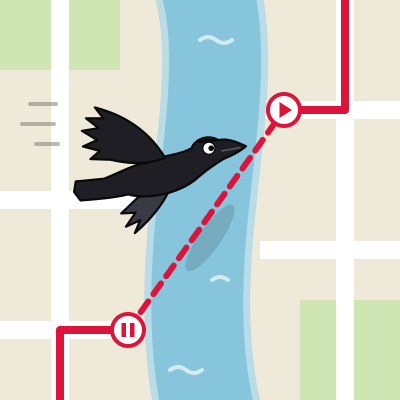
To draw those lines, use the pause-and-resume trick. While you're riding or running:
- Pause your GPS recording.
- Detour to the next point.
- Resume. Your GPS trace will join the two points with a straight line, as if a crow flew between them.
To plan this in RouteDoodle, use Bird Mode. Select the segments, then click the bird button. Bird Mode segments are shown as a dashed line. See Routing modes for more.
To Pause or Not to Pause?
Pausing makes it easier to draw a perfect picture, but some artists challenge themselves to pause as little as possible, or not at all.
- Constraints cultivate creativity. In 1975, the pianist Keith Jarrett had to improvise jazz piano at the Cologne opera house on a piano where only half the keys worked well. The performance became the best-selling solo piano recording ever. It was great not despite the constraints, but because of the them.
- Fulfilling challenge. Fitting a picture to real roads takes both puzzle-solving and artistic skill. Pulling it off without shortcuts is satisfying, and impressive.
- Technological advance. Traditional origami allowed cuts. As folding techniques improved, cuts became unnecessary, and today folded-and-cut paper is called kirigami instead. Likewise, tools like RouteDoodle make it far easier to plan routes that need no pauses.
Neither way is wrong. Think of them as two disciplines, like origami and kirigami.
Tutorials
Short tutorials, right on the map: each one shows you one thing, a step at a time, and waits for you to do each step. Take any of them, in any order, as often as you like.
Tips
Getting around
- RouteDoodle works on both desktop and mobile.
- On a computer: Open the menu with . to find commands and their shortcuts.
- On a computer: Every shortcut is listed in Keyboard Shortcuts.
- On a phone or tablet: Add RouteDoodle to your home screen and the map gets the whole screen.
- Short tutorials show you the Pencil and more, right on the map.
- On a computer: / finds a location on the map.
- On a computer: J brings the map back to your doodle after you’ve wandered away.
Layers and map styles
- On a computer: Q W E toggle the Picture, Wireframe, and Route Layers.
- On a computer: Shift+Q Shift+W Shift+E show just one layer.
- On a computer: 0 hides your doodle so you can see the map underneath.
- On a computer: Hold Space for a clean look at the route line alone — what your art will look like on Strava.
- On a computer: 1 through 9 are shortcuts for your favorite map styles.
- On a computer: Drag a map out of the Available Map Styles into Favorite Map Styles to put it on a number key.
Pictures to trace
- On a computer: S searches the web for pictures to trace. Simple silhouettes work best.
- Picture Search shows each result as the blue line it will become, so you can pick the one that traces cleanest.
- Drag any picture onto the map and RouteDoodle traces it into a wireframe. Simple silhouettes work best.
- You can drag a picture from your desktop or copy-paste a picture into RouteDoodle.
- Paste a picture’s web address straight into the map to trace it.
- First doodle? Draw a heart. Simple, forgiving, and looks good.
- Drawing an animal? Place the head first. A face is the part nobody will mistake for something else, and the body bends around the roads more easily.
Finding a good spot
- Looking for a good place to draw? See the best cities for GPS art.
- Dense street grids give you more to work with. An old city neighborhood beats a suburb with cul-de-sacs.
- On a computer: R paints every routable road on the map, to help you pick a good area to work with.
- On a computer: Rivers and train tracks cut a neighborhood in half — you cross only where there’s a bridge. Train tracks are the sneaky ones; they barely register on the map. Use R to see where neighborhoods are cut.
- Not sure you can cut through? Switch to a satellite map style and look.
- Show the Roads Layer over a Blank map style and look for pictures that pop out.
- Details disappearing? Try making your doodle larger so there are more streets to work with.
- On a computer: Right-drag your doodle around the map to hunt for a spot where the roads cooperate.
On a phone or tablet: Drag your doodle around the map to hunt for a spot where the roads cooperate. - Try rotating your doodle. A small change in angle can make the roads fit much better.
Drawing and editing
- On a computer: P hands you a pencil. Draw straight onto the map and watch the route follow along. Try it: Drawing with the Pencil
- To start a new line, begin drawing well away from the others. While the pencil is on, a dashed line shows where your stroke would join on. Try it: Drawing with the Pencil
- Each separate line has its own box. Drag the hand above it to move just that line.
- Need more control over a bend? Drag a hollow marker between two wireframe points to add another point.
- On a computer: Shift-click to select a run of points, or Control-click to pick them one at a time.
- On a computer: An animal’s legs or tail don’t fit? Shift-drag to lasso part of the wireframe, then move, resize, or rotate the selection to nearby streets.
On a phone or tablet: An animal’s legs or tail don’t fit? Touch and hold, then drag, to lasso part of the wireframe, then move, resize, or rotate the selection to nearby streets. - On a computer: Select a point and press DEL or click Remove to delete it. The line stays joined through the points on either side.
On a phone or tablet: Select a point and click Remove to delete it. The line stays joined through the points on either side. - On a computer: X or the Split button cuts a line in two. To join two lines back up, draw with the pencil to connect endpoints, or drag one endpoint onto another. Try it: Working in pieces
On a phone or tablet: The Split button cuts a line in two. To join two lines back up, draw with the pencil to connect endpoints, or drag one endpoint onto another. Try it: Working in pieces - Drag a line’s start onto its end to close it into a loop.
- To flip a doodle to its mirror image, resize past the other side.
- On a computer: Points on the red route drag just like points on the blue wireframe.
- On a computer: Ctrl+Z undoes an edit, so drag things around freely — nothing you try is permanent.
On a phone or tablet: The Undo button undoes an edit, so drag things around freely — nothing you try is permanent. - On a computer: U opens the History: every change you’ve made, with a picture of each. Click any of them to go back to that point.
Following the roads
- Going for a run? Switch to Run Mode: it takes footpaths and goes either way on one-way streets.
- On a computer: To change the routing mode for part of your doodle, lasso those points and click a mode button. Ctrl+A selects every point.
On a phone or tablet: To change the routing mode for part of your doodle, lasso those points and click a mode button. - A dashed stretch is a Bird Mode straight line. RouteDoodle draws one wherever it can’t find a road between two points.
- Bird Mode draws a straight line between two points — for pause-and-resume, and for the shortcuts the map data doesn’t know about.
- You can ride a bike across a field. Bike Mode won’t route you through one, but Bird Mode will draw the line.
- RouteDoodle will use parking lots and footpaths if they make the picture work. Check anything odd on a satellite map, or go and look in person.
- If the directions say "salmon", that stretch goes against traffic. Change the route, or walk your bike on the sidewalk there.
Stats and directions
- The Comfort score in the stats panel estimates how pleasant the route is to ride.
- The Span in the stats panel shows how many km/mi your doodle is in the real world.
- On a computer: Choose which route stats show from the ⋮ beside them.
On a phone or tablet: Choose which route stats show by touching and holding them. - On a computer: Open the elevation chart with V and run your mouse along it to highlight the position on the route.
- On a computer: D opens the turn-by-turn directions.
Saving and exporting
- On a computer: M copies a link to your wireframe. Paste it later to load the doodle.
- On a computer: Shift+M opens a copy of your doodle in a new window, so you can try an idea without losing what you have.
- Paste or drag a RouteDoodle link onto the map to open that doodle.
- Drag a route file (TCX, GPX, or FIT) onto the map to load an existing route.
- On a computer: Ctrl+E exports the route as TCX, GPX, or FIT for a bike computer or watch.
Riding
- When riding, use an app or device that can read turn directions out loud. That helps you avoid missing a turn.
- A stretch turns out to be unsafe? Pause your GPS, go around, and resume. Pause-and-resume draws the straight line for you.
- Want an extra challenge? Make your whole doodle without pausing your GPS.
- Made something good? Strava has clubs for Strava art, and Reddit has r/StravaArt.
Route Stats
The route stats are numbers about your doodle: how far it is, how much climbing there is, roughly how long it takes, and more. They're in a small panel in the corner of the map, and change as you edit.
On a phone, the panel starts with just the Route distance, beside the map style buttons. Tap it to open the Stats tab along the bottom of the screen, which has more stats above the elevation chart.
Choosing which stats show
- To choose which stats show, click the ⋮ beside them (on a touch screen, touch and hold them), or open Settings and find Route stats. Check a stat to show it, and uncheck it to hide it.
- Turns and the advanced stats are off until you check them. The advanced ones are under Show advanced stats, at the end of the list.
- On a phone, each stat has three checkboxes: On the map, for the panel on the map; Stats tab; and Full screen, for when you pull the Stats tab up to fill the screen.
- To hide the panel altogether, turn off Route stats in Settings, or press T. On a phone, uncheck every stat under On the map instead.
What each stat means
- Wireframe
- How long the lines you drew add up to, measured straight along each one from point to point. The roads never run exactly along your lines, so the Route is almost always longer.
- Route
- How far you'll actually ride or run, following the red line along the roads. This is the distance to plan your ride around. If it's much longer than the Wireframe, look for places where the roads go a long way around what you drew: moving a point or two often fixes it.
- Span
- How big your doodle is in the real world: the distance between the two points of the route that are farthest apart. The arrow shows which way that distance runs across the map.
- Climbing
- How much uphill there is, with every climb along the route added together and the downhills left out. The elevation chart shows where the climbs are. Also known as Ascent or Elevation Gain.
- Ride Time
- A rough estimate of how long the ride takes from start to finish, including slowing down for turns, stopping at lights and signs, and climbing, but not breaks for coffee or photos. A GPS art ride takes much longer than an ordinary ride of the same distance, because of all the turns. It starts from your Cruising speed, which you can change in Settings. The ~ is a reminder that it's an estimate, and it's rounded: to 5 minutes for a short ride, and to the hour for a long day.
- Turns
- How many turns you make along the route, counting U-turns but not bends in the road. Every turn slows you down and is one more to get right, so fewer turns means a quicker ride that's easier to follow. The directions list every one.
Show advanced statsHide advanced stats
Stats most people never need, for a closer look at the roads the route takes and how closely it follows your drawing.
- Comfort
- How much of the route is on roads and paths that are pleasant to ride, rather than busy or awkward ones. 100% is all pleasant; most routes are between 80% and 100%. Stretches with no road at all, such as Bird Mode, count against it. How RouteDoodle picks roads says what it avoids.
- Overlap
- How much of the route is on stretches of road you ride more than once, going either way. An out-and-back is 100%; a route that never rides the same road twice is 0%. Ridden twice, a stretch shows as a single line on your GPS track.
- Match
- How much of your drawing the route runs along closely, as a percent. Closely means within 40 m (130 ft), about half a short city block. On a doodle more than 4 km (2.5 mi) across, it's within 1% of the distance across the drawing instead, since a block's difference doesn't show on a map of a doodle that big. A route that is a block off for a stretch scores lower than one that touches your line every block, even though it may look smoother: Match measures closeness, not tidiness. Turns and the Route distance are where tidiness shows. A part of your drawing the route skips altogether counts against Match.
- Average Stray
- How far the route is from your lines, on average, all along the route. The Follow your lines slider in Settings is what changes it: closer to your lines makes it smaller, usually at some cost in Comfort and Turns.
- Worst Stray
- The furthest the route gets from your lines, anywhere along it: its biggest detour. A part of your drawing the route skips altogether doesn't count here, since the route never strayed from it; it counts against Match instead.
Add RouteDoodle to Your Home Screen
On a phone, you can put RouteDoodle on your home screen next to your other apps. Tapping its icon opens RouteDoodle full screen, without the browser's address bar and buttons, so the map gets the whole screen. Your phone is also less likely to clear the map data RouteDoodle keeps, so it starts faster. There's nothing to download from an app store.
First, open routedoodle.com in Safari (iPhone) or Chrome (Android). If you got here from a link inside another app, like Instagram or Facebook, that app's built-in browser can't add to the home screen; look for its Open in browser option first.
iPhone
- Tap the Share button . On iOS 26 and later, tap the ••• button beside the address first, then Share.
- Scroll down and tap Add to Home Screen.
- If you see Open as Web App, leave it switched on.
- Tap Add.
On an iPhone, the home screen app keeps its own copy of your work, apart from Safari's, so a doodle you started in Safari won't be there. To bring it over, tap Share link at the bottom of the Share window in Safari, then paste the link into the search box in the home screen app.
Android
- Tap the ⋮ menu button at the top right of Chrome.
- Tap Add to home screen (on some phones it says Install app).
- If Chrome asks whether to install or create a shortcut, choose Install.
- Tap Install or Add to confirm.
RouteDoodle Is 100% Free
All of RouteDoodle is completely free, for everyone, including all pro features: searching for a picture, tracing a picture, editing your drawing, turn-by-turn directions, and putting your route on your device. No signup is required.
No Catch
There's no paid version, no free trial that runs out, and no feature kept back for people who pay. No gimmicks. Every tool you see is yours to use, as often as you like.
Why Is It Free?
Karl Chen made RouteDoodle in 2023, when nothing else like it existed, because he needed it to make GPS art of his own. RouteDoodle costs very little to run, so it doesn't need to make money to keep going.
What it's for is getting more people out making GPS art. Keeping it free is how it does that.
RouteDoodle vs Other GPS Art Apps
A few other apps also turn a drawing into a route along real roads. Here is how RouteDoodle compares with them. RouteDoodle is 100% free, including all pro features, with no signup, and it has the most tools for adjusting your drawing until the route looks right.
| RouteDoodle | GPSArtify | RouteSketcher | DrawMyLoop | ArtTrails | Motera | |
|---|---|---|---|---|---|---|
| Price | ||||||
| Free | ✓ 100% Free | ✗ $20/year | ✓ $20 lifetime (very limited free demo mode available) | ✓ Free to draw; ✗ €0.33 per automatic placement | ✗ $15/year | ✓ 100% Free |
Everything in RouteDoodle is free, for everyone, including all pro features: tracing a picture, editing it, directions, and every kind of file. There's no paid version and no trial that runs out. ★ Why it stands out: The others charge for something you'll need, such as downloading the route or using a picture of your own, or they don't have pro features available at all.
| ||||||
| Use it without signing up | ✓ | ✗ | ✗ | ✗ after your first download | ✓ | ✓ |
Open the site and start drawing. There's no account to make and no email address to give. ★ Why it stands out: The others make you sign up first (though some have limited demos before signing up). | ||||||
| Where it runs | ||||||
| On a desktop | ✓ | ✓ | ✓ | ✓ | ✗ | ✓ |
RouteDoodle, and the majority of its competitors, work from any desktop web browser. | ||||||
| On a tablet | ✓ | ✓ | ✓ | ✓ | ✓ iPad ✗ Android | ✓ |
| On a phone | ✓ | ✓ | ✓ | ✓ | ✓ iPhone ✗ Android | ✓ |
RouteDoodle works in your phone's web browser, with nothing to install. You can optionally add it to your home screen and it opens like an app. ★ Why it stands out: ArtTrails is the only other one known to work on a phone, and only on an iPhone. Add it to your home screen → | ||||||
| Kinds of route | ||||||
| Routes for biking | ✓ | ✓ | ✓ | ✗ | ✓ | ✗ |
In Bike Mode, the route goes the right way down one-way streets, and keeps off footpaths, stairs and roads busy with cars, taking one only when your picture needs it. ★ Why it stands out: Unlike the other apps, RouteDoodle's routing algorithms were custom made for biking and GPS art. The other apps use off-the-shelf routing services that aren't really made for bike routing and GPS art. Even if they say they have a bike mode, they don't take into account one-way streets or roads better for cyclists. More about how RouteDoodle picks roads → | ||||||
| Routes for running | ✓ | ✓ | ✓ | ✓ | ✓ | ✓ |
| Mix both in one route: biking and running segments in one route | ✓ | ✗ | ✗ | ✗ | ✗ | ✗ |
| Straight lines between snapped roads, for pause-plot GPS art | ✓ | ✓ | ✓ | ✗ | ✗ | ✗ |
Some GPS artists pause their tracker, get to the next point however they can, and resume, so the recording jumps there in a straight line. Bird Mode puts those straight lines in your route, so you can plan them. More about pausing → | ||||||
| Mix both in one route: follow the roads, with the odd straight line where you pause and resume | ✓ | ✗ | ✗ | ✗ | ✗ | ✗ |
Pick a mode for each part of the route: follow the roads in Bike or Run Mode, and switch just the stretches where you'll pause to Bird Mode. More about routing modes → | ||||||
| Freehand routes across open ground, like a park or a field, not snapped to roads | ✗ | ✓ | ✓ | ✓ | ✓ | ✗ |
| Starting a drawing | ||||||
| Step-by-step tutorials right on the map, to learn as you go | ✓ | ✓ | ✓ | ✓ | ✓ | ✗ |
Short tutorials show you one thing at a time, such as drawing with the Pencil, and wait for you to do each step. More about the tutorials → | ||||||
| Ready-made shapes | ✓ | ✓ | ✓ | ✓ | ✓ | ✗ |
| Search for any picture to trace | ✓ | ✗ | ✗ | ✗ | ✗ | ✗ |
Type what you'd like to draw, such as a dragon, and pick a picture to trace. ★ Why it stands out: None of the others can search for a picture: you have to find one yourself and load it. More about starting from a picture → | ||||||
| Make an image with generative AI, for tracing | ✗ | ✗ | ✓ | ✗ | ✗ | ✗ |
| Load a picture and trace it automatically | ✓ | ✓ | ✓ | ✓ | ✗ | ✗ |
Drag in a picture (JPEG, PNG, and others) from your computer or another web page, and RouteDoodle traces it into a line. A bold, simple shape on a plain background traces best. ★ Why it stands out: It's free here, for any picture. Others charge for it or can't do it. More about starting from a picture → | ||||||
| Load an SVG drawing | ✓ | ✗ | ✗ | ✓ | ✗ | ✗ |
A drawing saved as SVG keeps its own lines, inside ones too, rather than being traced around its outline. More about starting from a picture → | ||||||
| Trace your own picture by hand, drawing over it on the map | ✓ | ✓ | ✓ | ✓ | ✓ | ✗ |
| Draw by dragging, like a pencil | ✓ | ✓ | ✓ | ✓ | ✓ | ✗ |
| Draw by clicking point by point | ✓ | ✗ | ✓ | ✓ | ✓ | ✓ |
| Load a route file from the same app | ✓ | ✗ | ✓ | ✓ | ✗ | ✗ |
Paste or drag in a wireframe link from another RouteDoodle session to keep working on it, or a GPX, TCX, or FIT file exported from RouteDoodle. What others lack: Since RouteDoodle supports the wireframe in the link, you can keep track of your RouteDoodle routes however you like. More about saving → | ||||||
| Load a route file from another app (GPX) and make it editable | ✓ | ✗ | ✓ | ✓ | ✗ | ✗ |
Drag in a route from another app, such as a GPX, TCX, or FIT file, to edit it. What others lack: Other apps can load a file, but every bend in a curve becomes a waypoint, making it too hard to adjust. More about saving → | ||||||
| Load a route file from another app (TCX/FIT) and make it editable | ✓ | ✗ | ✗ | ✗ | ✗ | ✗ |
| Load a ride you or someone already rode/ran (GPX/TCX/FIT) | ✓ | ✗ | ✗ | ✗ | ✗ | ✗ |
Drag in a GPX, TCX, or FIT file, to automatically trace it and make it editable. | ||||||
| Placing it on the map | ||||||
| Snap your drawing to the roads | ✓ | ✓ | ✓ | ✓ | ✓ | ✓ |
RouteDoodle finds the roads that best follow your drawing, not the quickest way there, so it will take a footpath or cut through a parking lot if that keeps the shape. More about how RouteDoodle picks roads → | ||||||
| Find the best spot for your drawing automatically | ✗ | ✓ | ✗ | ✓ €0.33 per use | ✗ | ✗ |
| See every road you can bike or run | ✓ | ✗ | ✗ | ✗ | ✗ | ✗ |
RouteDoodle's Roads Layer shows every road you can bike or run on, small ones included, and hides freeways, so you can spot pictures in the streets. More about the Roads Layer → | ||||||
| Editing | ||||||
| Move the whole drawing | ✓ | ✗ | ✓ | ✓ | ✓ | ✗ |
Drag the whole doodle somewhere else on the map to see whether the roads there suit it better. ★ Why it stands out: Finding the right spot is most of the work in GPS art. The others can't move a drawing at all or don't do it instantaneously the way RouteDoodle does. More about editing your doodle → | ||||||
| Resize it | ✓ | ✗ | ✓ | ✓ | ✗ | ✗ |
Drag a corner to make the doodle bigger or smaller. The route's length updates as you go, so you can stop at a distance you're happy to ride. ★ Why it stands out: Resizing is an important part of finding the right spot. The others can't do it or don't do it instantaneously the way RouteDoodle does. More about editing your doodle → | ||||||
| Rotate it | ✓ | ✗ | ✓ | ✓ | ✗ | ✗ |
Drag the handle at the top to rotate the doodle until its lines run along the streets. ★ Why it stands out: Rotating is an important part of finding the right spot. The others can't do it or don't do it instantaneously the way RouteDoodle does. More about editing your doodle → | ||||||
| Route updates instantly while you draw, move, resize or rotate | ✓ | ✗ | ✓ | ✗ | ✗ | ✗ |
The route along the roads redraws while you drag, so you can watch it change and stop where it looks best. ★ Why it stands out: None of the others do this, so finding a good spot there takes many tries. | ||||||
| Handles big doodles, with hundreds of points, without slowing down | ✓ | ✗ | ✗ | ✗ | ✗ | ✗ |
A detailed drawing, or one that spans a whole city, stays quick to move, resize and edit. ★ Why it stands out: Others, such as RouteSketcher, slow down or crash the browser on a big doodle. | ||||||
| Drag the drawing's points one at a time | ✓ | ✗ | ✓ | ✓ | ✓ | ✗ |
| Route updates instantly while you drag points | ✓ | ✗ | ✓ | ✗ | ✗ | ✗ |
| Move, resize, and rotate part of the drawing | ✓ | ✗ | ✗ | ✗ | ✗ | ✗ |
Select some of the points and an amber box appears around them: drag its handles to move, resize or rotate just that part, such as an arm or a tail. ★ Why it stands out: None of the others can, so there you'd move each point by hand. More about editing your doodle → | ||||||
| Cut a drawing into pieces and join them back up | ✓ | ✗ | ✗ | ✗ | ✗ | ✗ |
Cut the drawing into separate lines to move or reshape one part on its own, then join them back into one line to ride. More about editing your doodle → | ||||||
| Undo and redo | ✓ | ✗ | ✓ | ✓ | ✓ | ✗ |
| Visual undo history | ✓ | ✗ | ✗ | ✗ | ✗ | ✗ |
| Routing features | ||||||
| Turn-by-turn directions, to review steps and calculate time | ✓ | ✗ | ✗ | ✗ | ✗ | ✗ |
See every turn of the route before you set out. ★ Why it stands out: None of the others can generate directions. RouteDoodle uses a custom algorithm for directions made specially for for GPS art. More about the Route → | ||||||
| Estimated time | ✓ | ✗ | ✗ | ✗ | ✗ | ✗ |
See how long the route takes. ★ Why it stands out: None of the others can estimate the time it takes. RouteDoodle uses a custom algorithm made specially for for GPS art that takes into account not elevation gain but the fact that turns slow you down a lot, especially when you want to avoid missing a turn that would mess up your GPS trace. | ||||||
| Elevation profile, to see the hills | ✓ | ✗ | ✗ | ✓ | ✗ | ✗ |
| Slide along the elevation profile and see each spot on the map | ✓ | ✗ | ✗ | ✗ | ✗ | ✗ |
| Exporting and sharing | ||||||
| Turn-by-turn directions in the file, spoken aloud by RideWithGPS, and shown on bike computers | ✓ | ✗ | ✗ | ✗ | ✗ | ✗ |
Export a TCX or FIT file, and your bike computer or RideWithGPS tells you about each turn as you ride. ★ Why it stands out: None of the others put directions in their files, so with them you follow a line on a screen. More about exporting → | ||||||
| GPX file, for most apps and devices | ✓ | ✓ | ✓ | ✓ | ✓ | ✓ |
| TCX file, for RideWithGPS and Garmin, with directions | ✓ | ✗ | ✗ | ✗ | ✗ | ✗ |
| FIT file, for bike computers and watches, with directions | ✓ | ✗ | ✗ | ✗ | ✗ | ✗ |
| KML file, for Google Earth | ✓ | ✗ | ✗ | ✗ | ✗ | ✗ |
| Spreadsheet with turn-by-turn directions (CSV file) | ✓ | ✗ | ✗ | ✗ | ✗ | ✗ |
| Picture of your route without map background | ✓ | ✗ | ✓ | ✗ | ✗ | ✗ |
| Picture of your route with map background | ✓ | ✗ | ✗ | ✗ | ✗ | ✗ |
| Video of your route | ✓ | ✓ | ✓ | ✗ | ✗ | ✗ |
| Save your drawings on your device, to come back to later | ✓ | ✗ | ✗ | ✓ | ✗ | ✗ |
| Save your drawings to an account, to open on any device | ✗ | ✗ | ✓ | ✓ | ✗ | ✗ |
| Share an unpublished link to your drawing, ready for others to edit and download | ✓ | ✗ | ✗ | ✗ | ✗ | ✗ |
Copy a link that opens your doodle for anyone, ready to change and export. The picture isn't included. More about sharing → | ||||||
| Publish to a public gallery | ✗ | ✗ | ✓ | ✓ | ✗ | ✗ |
Strava, RideWithGPS, Komoot, and Garmin
These aren't really alternatives to RouteDoodle; you'll want them too. RouteDoodle draws the route, and they take it from there.
What they're good for: following your route on the ride or run, with turn-by-turn directions on your phone, watch or bike computer; recording your activity; and showing off the finished art to your friends. See Exporting for how to load a RouteDoodle route into each of them.
What they're not good for: drawing. Their route builders are made for getting from one place to another, so a picture has to be built up one click at a time. They can't trace a picture, and once a route is drawn, there's no way to move, resize or rotate the whole thing to see whether it would fit better a few blocks over.
Keyboard Shortcuts
| ← → ↑ ↓ | Move map | Shift← → ↑ ↓ | Move map x3 |
| + - | Zoom map | Shift+ - | Zoom map x3 |
| Q | Show/hide Picture | ShiftQ | Show only Picture |
| W | Show/hide Wireframe | ShiftW | Show only Wireframe |
| E | Show/hide Route | ShiftE | Show only Route |
| R | Show/hide Roads | ||
| J | Jump to off-screen Doodle or search result | ||
| A | Show/hide Doodle Layers | ShiftA | Show Doodle Layers, and center map |
| 0 | Hide/show Doodle Layers | Shift0 | Hide Doodle Layers |
| D | Show/hide Directions (Cuesheet) | ShiftL | Show/hide my location |
| V | Show/hide Elevation Chart | ||
| 1234 | Change map style | ||
| P | Pencil tool | ||
| Backspace | Remove selected points | ControlA | Select all |
| X | Split line at selected point | ||
| Z or ControlZ | Undo | Y or ControlY | Redo |
| U | Show/hide History | ||
| . | Show/hide menu | , | Show all settings |
| H | Show/hide help | H,K | Show keyboard shortcuts |
| H,T | Take a tutorial | ||
| ' or S | Search picture | / | Search map |
| M | Copy link to clipboard | ShiftM | Open link in new window |
| ControlE | Open export dialog | ShiftControlE | Export, using previous settings |
| ShiftO | Open OpenStreetMap editor | ||
| ShiftG | Open Google Maps |
Privacy Policy
Last updated: September 21, 2026
This Privacy Policy describes RouteDoodle, LLC's policies and procedures on the collection, use, and disclosure of your information when you use the RouteDoodle Services, as that term is defined in our Terms and Conditions.
By using the RouteDoodle Services, you agree to the collection and use of information in accordance with this Privacy Policy.
RouteDoodle, LLC does not sell, and has not sold, your personal information.
Vendors
RouteDoodle, LLC uses certain vendors, who may transmit information to or from RouteDoodle.
| Cloud Vendors | RouteDoodle uses cloud service providers such as Amazon Web Services and CloudFlare (collectively, "Cloud Vendors") to provide core functionality. RouteDoodle, LLC and the Cloud Vendors collect and record web server usage data, including your IP address and location information, device information, and the list of web addresses queried. |
|---|---|
| Map Vendors | RouteDoodle accesses map-related information from map servers such as OpenStreetMap, mirrors, basemap vendor servers, geocoding servers, their cloud service providers, content delivery networks, and other vendors and service providers (collectively, "Map Vendors"). The Map Vendors may collect and record your IP address and location information. |
| Analytics Vendors | RouteDoodle may use third-party analytics and observability service providers such as Google Analytics, Sentry, or PostHog (collectively, "Analytics Vendors") in order to provide better services. These Analytics Vendors may use cookies or other similar technology, and may collect and record your IP address and location information, device information, content viewed or interacted with, user interactions such as mouse clicks, and browser event data. |
Location Information
Location Information that RouteDoodle, LLC and vendors may collect includes the following:
| Device Location | Your location according to your device (if you opt-in) |
|---|---|
| IP Location | Your location according to your IP address |
| Map Location | The location you are viewing on the map |
| Map Search Location | The location you searched for on the map |
| Wireframe Location | The location of the wireframe and route you placed on the map |
Creating an Account and Logging In
It is not necessary to create an account or log in, to productively use RouteDoodle.
If you choose to create an account, RouteDoodle stores the email address you give, your password in a hashed form that cannot be turned back into the password, which version of the Terms and Conditions you agreed to, your settings, and, for each device you sign in from, its network address and browser type, used to limit misuse and to list where you are signed in. Nothing else. Account email — a confirmation link, a password reset — goes only to the address on the account. Deleting your account, in Settings, removes all of it.
If you do not log in, RouteDoodle does not collect your username or email address. RouteDoodle only stores a random identifier in your browser so that we can tell one visit from another when diagnosing problems. It is not linked to your name or to anything that identifies you.
Cookies
RouteDoodle employs cookies and browser local storage technology to provide better services. This includes but is not limited to staying logged in, saving your picture/wireframe/route, and caching Input Map Data.
Changes to Privacy Policy
RouteDoodle reserves the right to modify this Privacy Policy from time to time. Please review it occasionally. Any changes will become effective upon posting of the revised Privacy Policy on the RouteDoodle website. If we make changes we deem to be material, we will notify you when you log in. If you object to any changes to this Privacy Policy, you should stop using RouteDoodle and delete your account.
Contact
If you have any concerns regarding this Privacy Policy, please send email to info@RouteDoodle.com.
Terms and Conditions
Last updated: September 21, 2026
We are RouteDoodle, LLC ("we", "us", "our"). We operate the website RouteDoodle.com, as well as any other related products and services (collectively, the "RouteDoodle Services"). You may contact us by email at info@RouteDoodle.com.
By using the RouteDoodle Services, you agree to the following terms and conditions ("Terms"). If you do not agree with any part of these Terms, then you may not use the RouteDoodle Services.
Our Privacy Policy describes how we collect, use, and disclose your information, and is incorporated into these Terms by reference. By using the RouteDoodle Services, you also agree to the Privacy Policy.
Eligibility
You must be at least 18 years old and have the legal authority to enter into these Terms, in order to use the RouteDoodle Services.
Description of Services and Methodology
The goal of the RouteDoodle Services is to help you create GPS Art by suggesting navigational routes that resemble a picture that you specified. The routes can be used for cycling, running, or other physical movement activities ("Physical Activities"). The RouteDoodle Services use automated algorithms, heuristics, code, rules, database lookups, caching, and other software techniques (collectively, "Algorithms"). The function of the Algorithms includes, but is not limited to, selecting geographic waypoints on a map, finding navigable paths between each waypoint, and suggesting turn-by-turn directions for navigation.
The Algorithms rely on map-related data from OpenStreetMap and other vendors ("Input Map Data"), including but not limited to information relating to roads, sidewalks, highways, and other ways, including but not limited to attributes such as geographic coordinates, elevation, names, connectivity, access restrictions, and quality of road surface.
The Algorithms generate "Routing Output", which includes but is not limited to any routes, information, file, turn-by-turn directions, cues, instructions, text data, binary data, geographic data, or other data produced by the RouteDoodle Services that can be used for making GPS art or for navigation, including but not limited to location of control points, waypoints, wireframe, paths between points, and turn-by-turn directions; for clarity, Routing Output includes but is not limited to files downloaded as GPX, TCX, FIT, KML, CSV, SVG, PNG, or other format, and includes but is not limited to information retrieved, exported, captured, or printed from the RouteDoodle Services, even if it is done without using formal download functionality.
Disclaimer of Warranty
THE ROUTEDOODLE SERVICES ARE PROVIDED "AS-IS" AND "AS-AVAILABLE" AND COME WITH NO WARRANTY, EXPRESS OR IMPLIED, INCLUDING BUT NOT LIMITED TO THE WARRANTIES OF MERCHANTABILITY, FITNESS FOR A PARTICULAR PURPOSE, TITLE, AND NONINFRINGEMENT.
You acknowledge that the Input Map Data used by the RouteDoodle Services are made of freely available and publicly editable user-generated content. You acknowledge that Input Map Data and Routing Output may differ from actual conditions, and may be incomplete or erroneous. You acknowledge that RouteDoodle, LLC is not involved in validating, correcting, completing, improving, accepting feedback, monitoring, or overseeing Input Map Data. You acknowledge that the RouteDoodle Services may use an out-of-date or incorrect version of Input Map Data, due to caching, planned and unplanned downtime, bugs, or other reasons.
You acknowledge that the RouteDoodle Services (for reasons including but not limited to the methodology described in these Terms) may produce Routing Output that is not as practical, safe, or legal compared to what would be produced by conventional routing services that make routes for utility travel or enjoyment of the trip. You acknowledge that the RouteDoodle Services may generate Routing Output that may have dangerous conditions, may be illegal to traverse, and may be unsuitable for Physical Activities, due to errors and omissions in the Input Map Data, known or unknown flaws in the Algorithms, or other reasons. You acknowledge that RouteDoodle, LLC does not guarantee that any portion of Routing Output generated by the RouteDoodle Services is safe, legal to traverse, practical, appropriate, or better than alternatives in any way.
You acknowledge that RouteDoodle, LLC does not guarantee that the RouteDoodle Services are free of bugs, malware, or other defects. You acknowledge that RouteDoodle, LLC does not guarantee that any errors will be corrected.
Assumption of Risk
You acknowledge that Routing Output is not intended or expected to be used without your careful review and manual adjustment. You agree that it is your responsibility to ensure safety and legality, including but not limited to adjusting the Routing Output manually after it is automatically generated, and being careful and complying with laws and regulations while using Routing Output during Physical Activities. You voluntarily assume all known and unknown risks related to using the RouteDoodle Services, even if they are caused by negligence of RouteDoodle, LLC, its parents, subsidiaries, affiliates, shareholders, LLC members, directors, officers, employees, agents, partners, suppliers, and licensors (collectively, the "RouteDoodle Parties").
You acknowledge that the Physical Activities in which you may participate in conjunction with the RouteDoodle Services are inherently risky, including but not limited to when making GPS art. You acknowledge that using a route created by automated software based on user-contributed map data is inherently risky. You acknowledge that looking at a device or screen during Physical Activities is inherently risky. You agree that you are solely responsible for whether to wear a helmet or other protective gear or equipment. You agree that it is your responsibility to follow all applicable laws and regulations, regardless of Routing Output. For the avoidance of doubt, you agree that it is your responsibility to be safe and follow applicable laws and regulations, even if the Routing Output includes navigational steps that go onto non-public roads or against the flow of traffic, regardless of whether or not the Routing Output indicates this with words like "dismount" or "salmon". You agree that RouteDoodle, LLC is not an event organizer or race course organizer. You agree that RouteDoodle, LLC does not assume responsibility for inspection, supervision, preparation, or conduct of any Routing Output or Physical Activities and does not have a duty of care for ensuring the safety or legality of Routing Output or Physical Activities.
Limitation of Liability
To the maximum extent permitted by law, under no circumstances and under no legal or equitable theory, whether in tort, contract, strict liability, negligence, or otherwise, shall the RouteDoodle Parties be liable to you or to any other person for any indirect, special, incidental, consequential, punitive, or exemplary losses or damages of any nature arising out of or in connection with the use of or inability to use the RouteDoodle Services, including but not limited to property damage, bodily injury, death, lost profits, lost time, loss of goodwill, loss of data, accuracy of results, or computer failure or malfunction, even if the RouteDoodle Parties have been advised of or should have known of the possibility of such losses or damages.
In no event will the RouteDoodle Parties be liable for any damages in excess of the fees, if any, paid by you to RouteDoodle, LLC in connection with your use of the RouteDoodle Services during the twelve month period preceding the date on which the claim arose (or up to $10.00 if you have not paid for RouteDoodle Services during this period).
You acknowledge that the disclaimer of warranty, allocation of risk, and limitations of damages are material and fundamental elements of the basis of the bargain between RouteDoodle, LLC and you; you acknowledge that RouteDoodle, LLC would not provide the RouteDoodle Services without such terms; and you agree that they are fair and reasonable. You agree that the limitations of liability and exclusion of damages will apply even if this remedy doesn't fully compensate you for any losses or if any remedy fails of its essential purpose.
Indemnification
You (and any third party on whose behalf you use the RouteDoodle Services) agree to defend, indemnify, and hold harmless the RouteDoodle Parties from and against all claims, actions, demands, obligations, losses, liabilities, costs or debt, and expenses, including but not limited to attorneys' fees and accounting fees, arising out of your use of the RouteDoodle Services or Routing Output, including but not limited to your breach of any applicable law or infringement of the rights of a third party, even if it involves property damage, bodily injury, or death. RouteDoodle, LLC reserves the right, at its own cost, to assume the exclusive defense and control of any matter otherwise subject to indemnification by you, in which event you will fully cooperate with RouteDoodle, LLC in asserting any available defenses. You may not settle or negotiate any claim that results in liability to, or imposes any obligation upon the RouteDoodle Parties, financial or otherwise, without the written consent of RouteDoodle, LLC.
Choice of Law and Venue
The validity, interpretation, construction, and performance of this agreement shall be governed by the laws of the State of New York, without regard to its conflict of laws principles. You agree that all actions or proceedings arising in connection with this agreement shall be tried and litigated only in the state and federal courts located in the County of New York, State of New York.
Nothing in this section prevents either you or RouteDoodle, LLC from bringing an individual claim in small claims court, in the jurisdiction where you reside, if the claim qualifies for that court. These Terms are still governed by the laws of the State of New York.
Time Limitation on Claims
You agree that any claim you may have arising out of or related to your relationship with the RouteDoodle Services or RouteDoodle, LLC and these Terms must be filed within one year after such claim arose; otherwise, your claim is permanently barred.
Exclusion and Limitations
Some jurisdictions do not allow the exclusion of certain warranties, the limitation or exclusion of liability for incidental or consequential damages, the release or assumption of risk of liability for personal injury, or time limitation on claims. Therefore, some of the disclaimers, assumption of risk, limitation of liability, or time limitation on claims may not apply to you.
Severability
If any provision of these Terms is held unenforceable or invalid, such provision will be changed and interpreted to accomplish the objectives of such provision to the greatest extent possible under applicable law and the remaining provisions will continue in full force and effect.
Waiver
A waiver by either party of any term or condition of these Terms or any breach thereof, in any one instance, will not waive such term or condition or any subsequent breach thereof.
Interpretation
The section headings in these Terms are provided merely for convenience and shall not be given any legal import.
Entire Agreement
These Terms, together with the Privacy Policy, constitute the entire agreement between you and RouteDoodle, LLC, and shall govern use of the RouteDoodle Services, superseding any prior version of these Terms and superseding any prior or contemporaneous oral or written communication.
No Third Party Rights
Unless expressly stated in these Terms to the contrary, nothing herein is intended to confer any rights or remedies on any persons other than you, RouteDoodle, LLC, and our successors and assigns. Nothing in these Terms is intended to relieve or discharge the obligation or liability of any third persons to you and RouteDoodle, LLC and our successors and assigns, nor shall any provision give any third parties any right of subrogation or action over against you, RouteDoodle, LLC, and our successors and assigns.
Force Majeure
Neither party shall be liable for any delay or failure to perform resulting from causes outside its reasonable control, including, but not limited to, acts of God, war, terrorism, riots, embargos, acts of civil or military authorities, fire, floods, accidents, strikes, or shortages of transportation facilities, fuel, energy, labor or materials.
Revisions
We reserve the right, at our sole discretion, to modify or replace these Terms at any time. The Last-Updated date in these Terms will be updated to provide notice of changes, and such posting on the website shall be deemed constructive notice. If the Terms change, the website will prompt you to accept the new Terms before allowing you to download a route file; nevertheless, regardless of whether you use the download functionality or have re-clicked the button to agree to the terms, by continuing to use the RouteDoodle Services, you agree to the revised Terms.
Property Rights
The map data is copyright OpenStreetMap and its contributors, licensed under the Open Data Commons Open Database License (ODbL)
We own the copyright to the RouteDoodle logo. You may not use or display it without our prior written permission, other than the following specific use. The RouteDoodle Services include functionality to let you download an image of your route that includes the RouteDoodle logo. You may reproduce and share this image including the RouteDoodle logo, provided that you do not use this to convey or imply that RouteDoodle, LLC endorses or approves the content of your image.
We reserve all rights not expressly granted hereunder.
Your Feedback
We welcome your comments, feedback, suggestions, and other communications (collectively, "Feedback"). If you provide Feedback, you hereby grant RouteDoodle, LLC a worldwide, non-exclusive, transferable, assignable, sub-licensable, perpetual, irrevocable, royalty-free license to copy, distribute, create derivative works of, publicly display and perform and otherwise exploit such Feedback and to use, make, have made, sell, offer for sale, import and export products and services based on such Feedback.
External Links
The RouteDoodle Services contain links to third-party websites. These links are provided as a convenience and for informational purposes only. They do not constitute an endorsement or approval by us of any products, services, or opinions. RouteDoodle, LLC bears no responsibility for the accuracy, legality, or content of the external site or subsequent links.
Termination
RouteDoodle, LLC has the right to, immediately and without notice, suspend or terminate any services provided to you, for any reason, or no reason at all. You agree that all terminations shall be made in our sole discretion and that RouteDoodle, LLC shall not be liable to you or any third party for any termination.
All provisions of the Terms which by their nature should survive, shall survive these Terms and your use of the RouteDoodle Services, including but not limited to ownership provisions, indemnification obligations, warranty disclaimers, limitation of liability, and time limitation on claims.
Feedback
Love RouteDoodle, have suggestions, found a bug? Submit feedback or email info@RouteDoodle.com.
Who's behind RouteDoodle?
RouteDoodle was made by Karl Chen. Check out Karl Chen's GPS Art.